Enterprise DASH Streaming Infrastructure Implementation
Dynamic Adaptive Streaming over HTTP (DASH) represents the MPEG industry standard for adaptive bitrate streaming enabling high-quality media content delivery over standard HTTP infrastructure. This production-grade streaming solution provides scalable content distribution supporting multiple bitrate variants with automatic quality adaptation based on network conditions and client capabilities. Similar to Apple HTTP Live Streaming (HLS) architecture DASH segments content into discrete chunks served through conventional web servers while maintaining compatibility across diverse client platforms and devices.
The DASH protocol enables sophisticated streaming applications including live broadcast systems video-on-demand platforms and enterprise media distribution networks. Content segmentation occurs at regular intervals typically 2-10 seconds with multiple encoding quality levels ensuring optimal viewing experience across varying network conditions. This comprehensive implementation guide demonstrates production DASH server configuration on Windows enterprise platforms utilizing Internet Information Services (IIS) and FFmpeg integration for professional media streaming deployment.
Enterprise Web Server Infrastructure Configuration
Microsoft Internet Information Services (IIS) provides robust enterprise-grade web server capabilities supporting production streaming applications. The following configuration establishes foundational web server infrastructure for DASH streaming deployment:
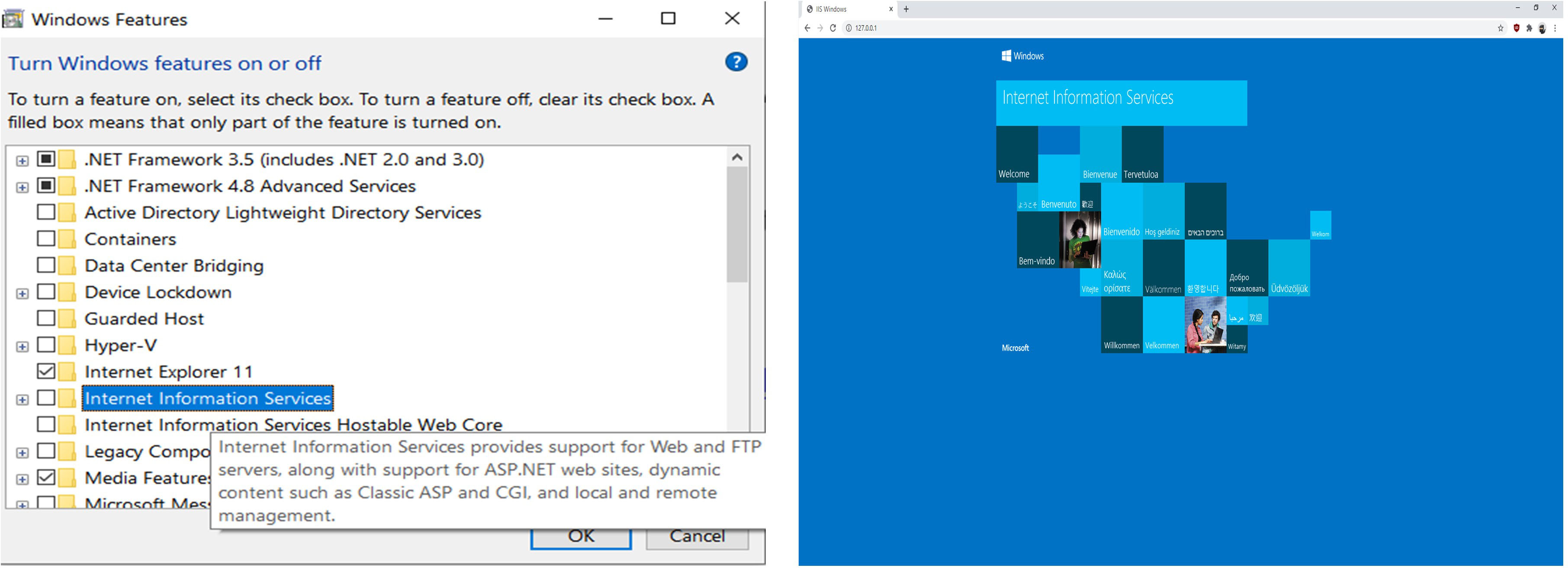
- Windows Features Activation: Access Windows Features configuration (Windows Key + S, search “Turn Windows features on or off”)
- IIS Service Installation: Enable Internet Information Services checkbox and complete installation process
- Service Verification: Validate installation by navigating to localhost address 127.0.0.1 in web browser
- System Validation: Confirm default IIS welcome page displays successfully (system reboot may be required)
Production Document Root Configuration
Enterprise deployment may require custom document root configuration for organizational file management and security compliance. Default IIS document location exists at C:\inetpub\wwwroot\ with administrative modification capabilities:
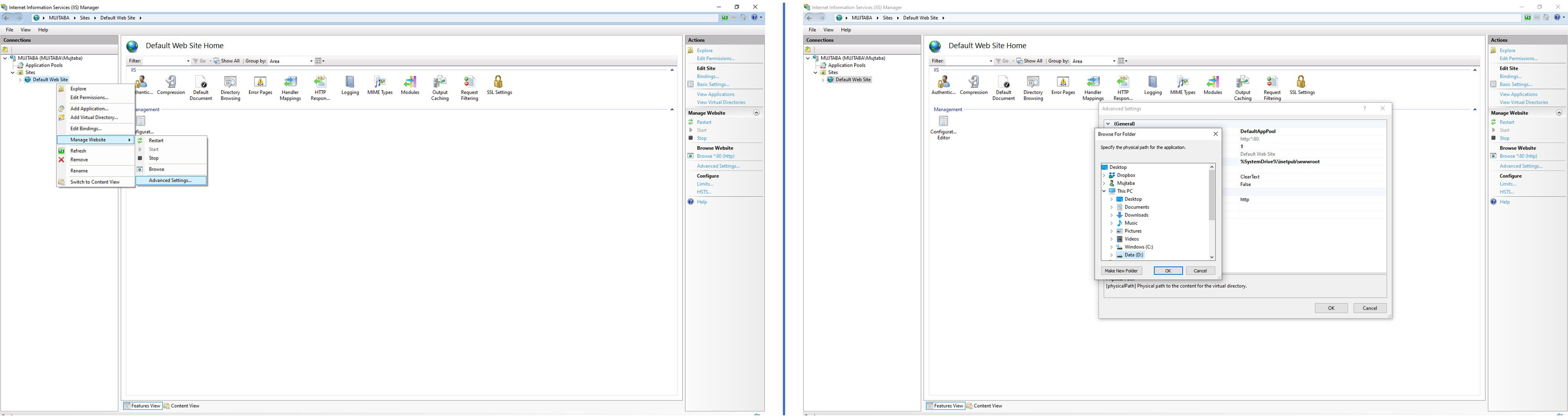
- IIS Manager Access: Launch IIS Manager application (Windows Key + S, search “IIS”)
- Site Management Access: Right-click “Default Web Site” and select “Manage Website” followed by “Advanced Settings”
- Physical Path Configuration: Modify “Physical Path” setting to specify custom document root location for streaming content storage
- Security Validation: Ensure configured directory maintains appropriate permissions for web server access and content delivery
Step 3: Enabling Cross-Origin Resource Sharing (CORS)
To test streams, you need to allow other websites to access files on your web server. This practical task is done by enabling cross-origin resource sharing (CORS). Follow these practical steps:
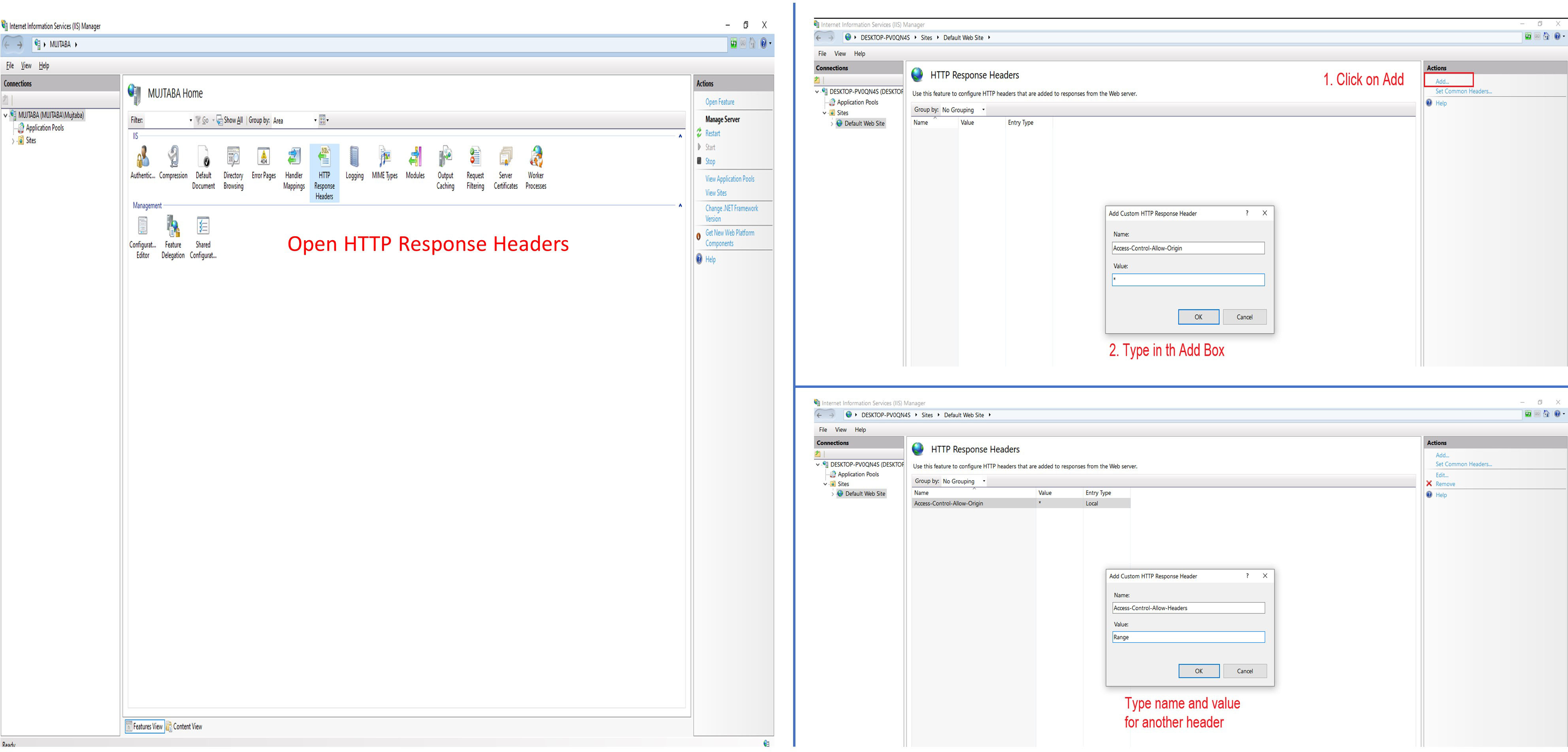
- Open the webserver (WindowsKey+S then type IIS).
- Select Default Web Site and right-click or double-click HTTP Response Headers.
- Select Open Feature from the Action pane. Then, click Add and type in Access-Control-Allow-Origin for Name and type “*” for Value.
- Click OK to add the header. To add another value, type in Access-Control-Allow-Headers for Name and type Range for Value.
Step 4: Adding the DASH MIME Type
DASH requires statements to learn how to analyze video and audio files. DASH manifest files end in .mpd. Windows IIS does not know about this extension by default. Follow these steps to add the MIME type:
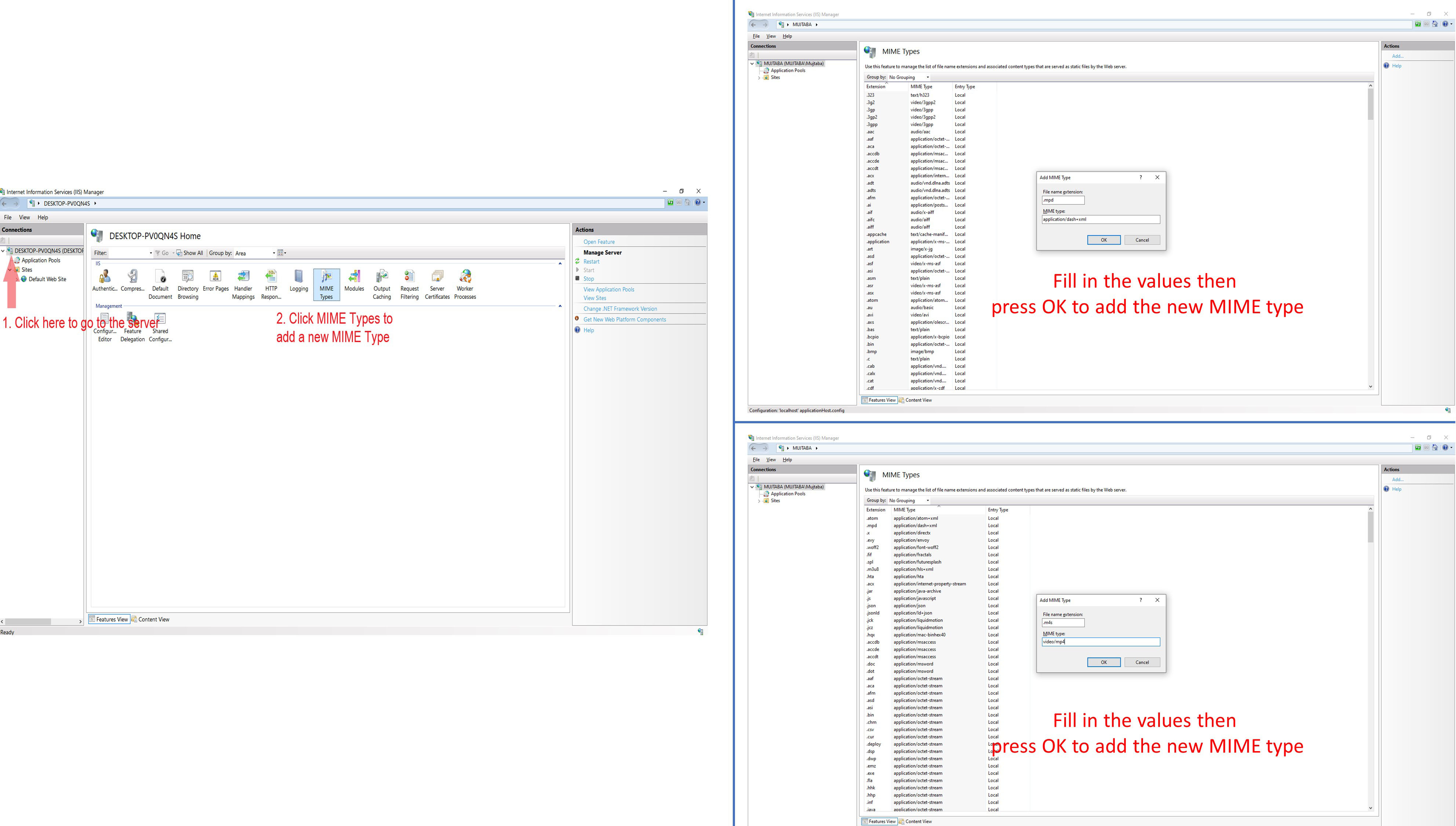
- Under connections, click your server and double-click MIME Types.
- Type .mpd for File name extension and type application/dash+xml for MIME-type. Press OK.
- Type .m4s for File name extension and type video/mp4 for MIME-type. Press OK.
Step 5: FFmpeg Installation
- Download FFmpeg from the readily available source here.
- Extract the downloaded FFmpeg zip file to C:\ffmpeg.
- Navigate to the bin folder under C:\ffmpeg and copy the address using Ctrl+C.
- Open up the System information window and click on Advanced System Settings. Then click on Environment Variables.
- Select the Path variable under System variables.
- Click Edit and then click New.
- Type Ctrl+V to paste in the address where you extracted FFmpeg earlier. Then press OK.
Check Installation
Open cmd and type ffmpeg in the command prompt. If you see much text in the cmd, your FFmpeg is installed successfully.
Step 6: Prepare Workspace
- Download the sample video BigBuckBunny.
- Rename the downloaded file to input.mp4.
- Run the following command in the cmd in the same directory:
ffmpeg -re -i input.mp4 -map 0 -map 0 -c:a copy -c:v libx264 -b:v:0 800k -b:v:1 300k -s:v:1 320x170 -profile:v:1 baseline -profile:v:0 main -bf 1 -keyint_min 120 -g 120 -sc_threshold 0 -b_strategy 0 -ar:a:1 22050 -use_timeline 1 -use_template 1 -window_size 5 -adaptation_sets "id=0,streams=v id=1,streams=a" -f dash out.mpd
- Once the process is completed, copy all the files excluding input.mp4 into the default IIS physical path (i.e C:\inetpub\wwwroot\) or the modified path.
To generate segments from multiple videos, clone the repository using the following command:
git clone https://github.com/iamgmujtaba/dash-server.git
Then run the following script:
python .\main.py -i .\input\ -o .\output\
Step 7: Final Testing
Check your IP Address
Open cmd and type ipconfig. Get IPv4 Address. It would be 192.XXX.XXX.XXX.
Play Video on DASH Player
VLC
- Install VLC.
- Open Network Stream by using Ctrl+N.
- Type the URL like this http://192.XXX.XXX.XXX/bbb_dash/out.mpd. bbb_dash is the directory of the processed BigBuckBunny video and out.mpd is the DASH text file we created using the above script.
- Finally, press play.
If you can watch the video, it means you have successfully configured DASH on your Windows machine.
Ubuntu or Jetson Devices
Suppose you want to utilize a native DASH web player. In that case, you can clone dash.js from GitHub and then follow the installation instructions.
The main code is available at GitHub.
Raise an issue if you are facing any problems.